このガイドが役立つ理由
このガイドでは、アプリをインストールせずに楽しめる速くて安全なブラウザゲームを紹介します。Gamozyでは、小さな画面でも見やすく、短時間で遊べるゲームを探しやすくしています。
自分に合うゲームの選び方
始める前にカテゴリ、読み込み速度、操作方法、プレイ時間を確認しましょう。良いブラウザゲームは数秒で始まり、休憩中にも気軽に楽しめます。
モバイルとデスクトップのコツ
スマホではタップやスワイプ操作のゲームがおすすめです。デスクトップではキーボード操作、パズル、レース、アクション、戦略ゲームが遊びやすいです。
よくある質問
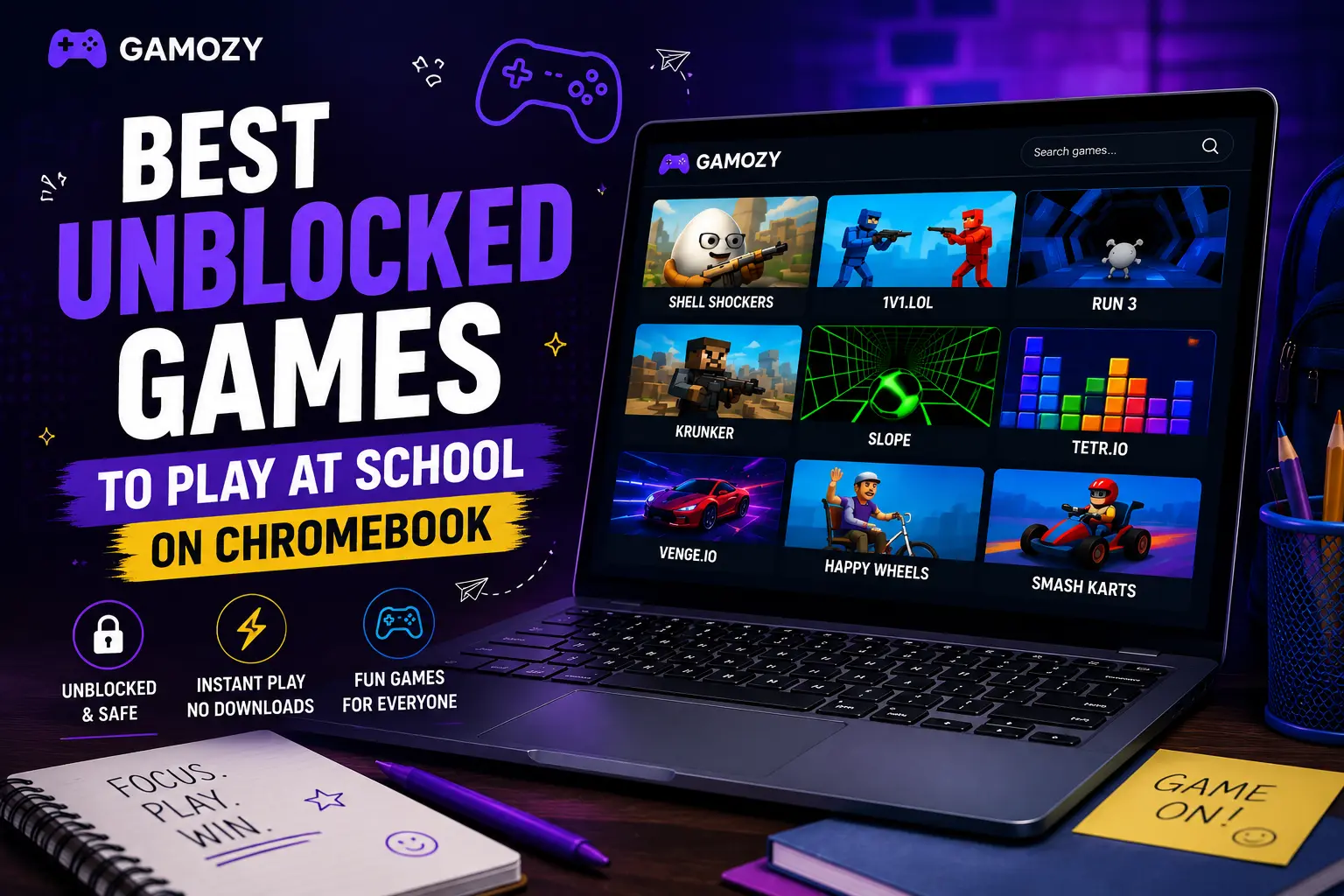
A few quick tips to make your gaming sessions smoother on a Chromebook. First, always open games in a regular Chrome tab rather than incognito — some school-managed Chromebooks block incognito mode entirely. Second, if a game feels sluggish, close other tabs; Chromebooks have limited RAM and every tab competes for it. Third, use keyboard controls where available — Chromebook trackpads are fine but keyboard inputs are always more precise for reflex games. Fourth, bookmark your favorite Gamozy games so you can jump to them instantly. And finally, be aware of your school's policies on recreational browsing — Gamozy is built for legitimate break-time fun, so keep it in that space.
Chromebook Gaming vs Phone Gaming During School
A lot of students wonder whether they're better off gaming on their phone or their school Chromebook during breaks. The honest answer is: it depends on your school's rules. Many schools have started requiring phones to be put away during the school day, which makes the Chromebook the only realistic option. Browser games on Chromebook are actually great in this context because the larger screen makes puzzle and strategy games more enjoyable, keyboard controls feel more precise for arcade games, and you're already on the device you're supposed to be using. If your school allows phone use during breaks, Gamozy works just as well on mobile — all games are touch-optimized.
Frequently Asked Questions
Recommended Gamozy Games
Try these related free browser games after reading the guide.