Why Chromebooks Are Perfect for Browser Gaming
Chromebooks have taken over American classrooms — and for good reason. They're fast, affordable, and built entirely around the browser experience. But that browser-first design also makes them perfect gaming machines for HTML5 games. Unlike Windows laptops or Macs, Chromebooks don't support traditional software installs, which means downloaded games are completely off the table. Browser games, however, work beautifully. HTML5 games load directly in Chrome with zero friction, and since Chromebooks keep Chrome always up to date, you're always running the best possible environment for browser gaming. The only catch is school network filters — but clean, HTTPS-based gaming sites like Gamozy are far less likely to trigger those filters than most alternatives.
What Makes a Game Truly "Unblocked" at School?
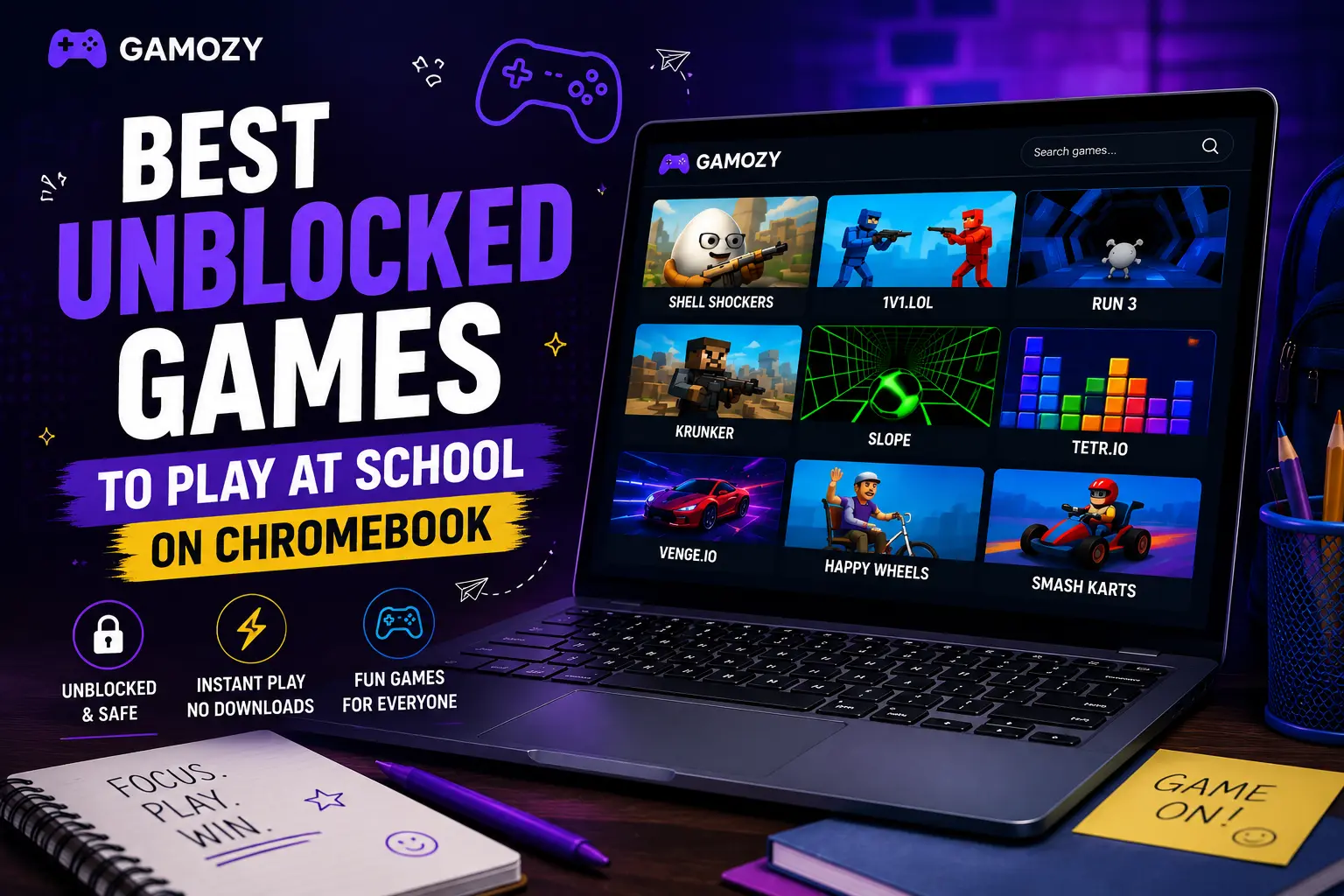
The term "unblocked" gets thrown around a lot, but it basically means a game that loads on a school or work network without being caught by content filtering software. Most school networks use tools like GoGuardian, Securly, or Lightspeed to block sites that fall into certain categories. Gaming sites with aggressive ads, pop-ups, auto-downloads, or sketchy domain histories tend to get flagged and blocked. Sites that run cleanly on HTTPS, serve straightforward content, and don't trigger ad-category filters have a much better chance of staying accessible. Gamozy checks all those boxes — HTTPS, no pop-up ads, no downloads, and clean readable game pages.
Top Unblocked Games on Gamozy for Chromebook
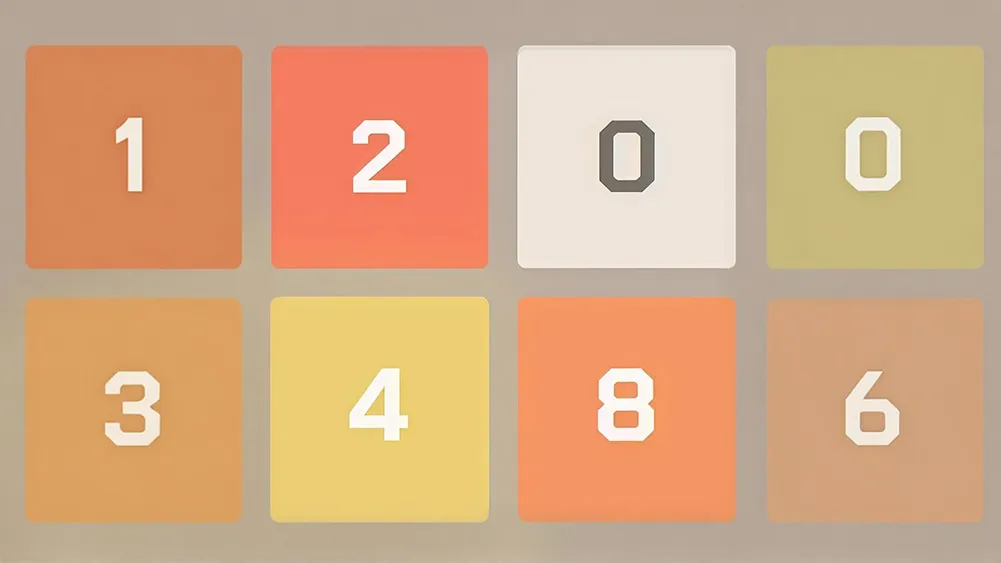
Here are some of the best games on Gamozy that work great on Chromebook during school breaks. 2048 is a timeless number puzzle — slide tiles to combine matching numbers and chase that satisfying 2048 tile. It's completely keyboard-friendly, perfect for Chromebook trackpads. Snake Go modernizes the classic Nokia snake experience with smoother movement and updated visuals, and it plays great with arrow keys. Water Color Sort is an incredibly relaxing puzzle where you sort colored liquids into matching tubes — no time pressure, just pure satisfying logic. Ping Pong Ball gives you a quick competitive fix with simple controls and fast rounds that fit perfectly into a five-minute break.
Tips for Gaming on Your School Chromebook
A few quick tips to make your gaming sessions smoother on a Chromebook. First, always open games in a regular Chrome tab rather than incognito — some school-managed Chromebooks block incognito mode entirely. Second, if a game feels sluggish, close other tabs; Chromebooks have limited RAM and every tab competes for it. Third, use keyboard controls where available — Chromebook trackpads are fine but keyboard inputs are always more precise for reflex games. Fourth, bookmark your favorite Gamozy games so you can jump to them instantly. And finally, be aware of your school's policies on recreational browsing — Gamozy is built for legitimate break-time fun, so keep it in that space.
Chromebook Gaming vs Phone Gaming During School
A lot of students wonder whether they're better off gaming on their phone or their school Chromebook during breaks. The honest answer is: it depends on your school's rules. Many schools have started requiring phones to be put away during the school day, which makes the Chromebook the only realistic option. Browser games on Chromebook are actually great in this context because the larger screen makes puzzle and strategy games more enjoyable, keyboard controls feel more precise for arcade games, and you're already on the device you're supposed to be using. If your school allows phone use during breaks, Gamozy works just as well on mobile — all games are touch-optimized.
Frequently Asked Questions
Recommended Gamozy Games
Try these related free browser games after reading the guide.